Australian cloud for business software — built and run in Sydney since 2003

NetLeverage
NetLeverage

Delivery client

Keep the right copy where your team can use it.

Your data, within reach

When an accountant or support team needs an earlier copy, the work should not begin with a search for where it is stored. The Delivery Client brings selected backups to your own computer and lets you share a chosen item with the person who needs it.

What you get

Vault delivery

Backups land in a Vault folder on the local disk as compressed, de-duplicated chunks; parts shared between backups are stored once.

S3 and SFTP

Configure S3 or SFTP delivery in the Cloud Dashboard or Delivery Client. Backups upload directly from the cloud; progress is visible in the client too.

Pick the assets

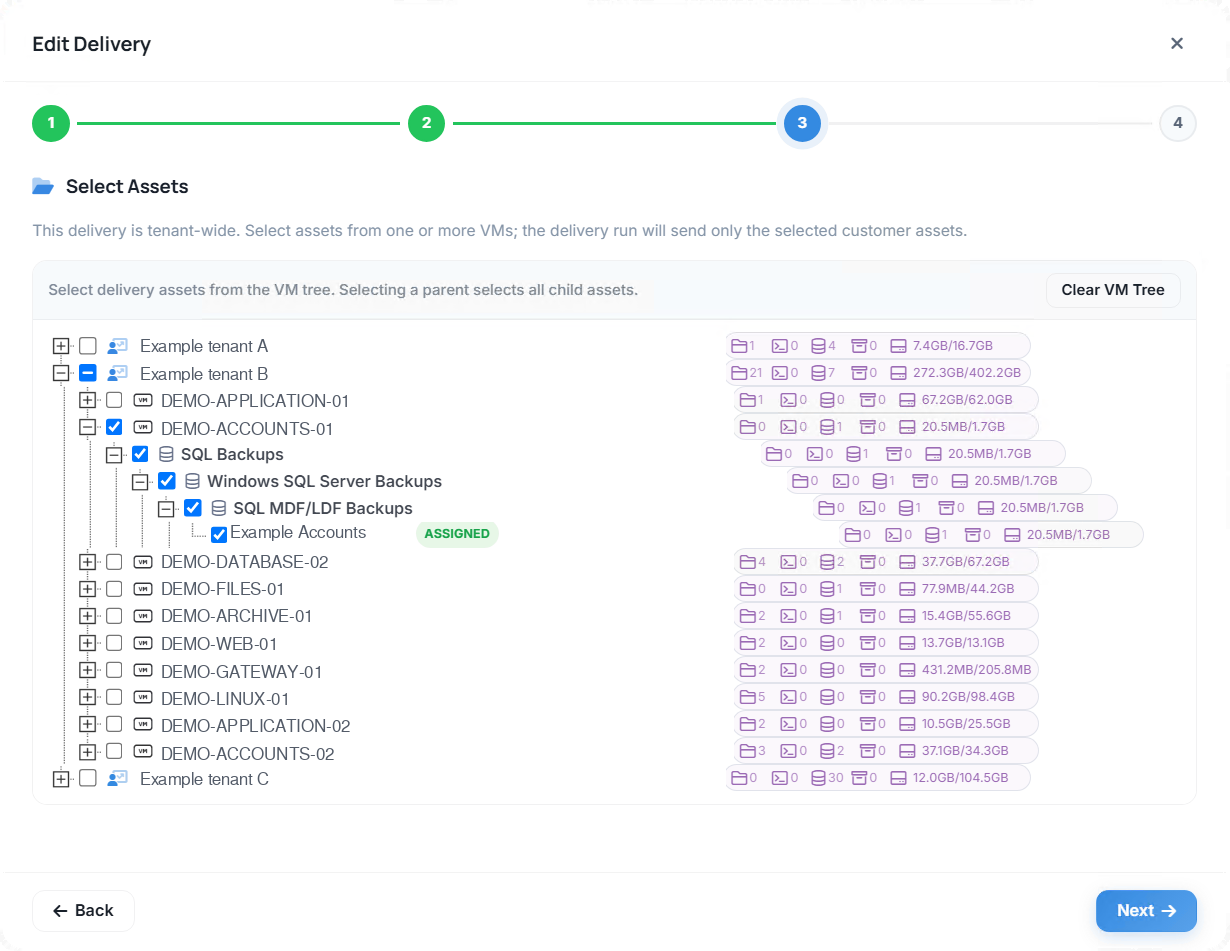
Choose servers and backups from the tenant tree; selecting a server takes all its backups with it.

Schedule and keep

Set how often a delivery runs and how many runs to keep; older ones are removed for you.

Share and receive

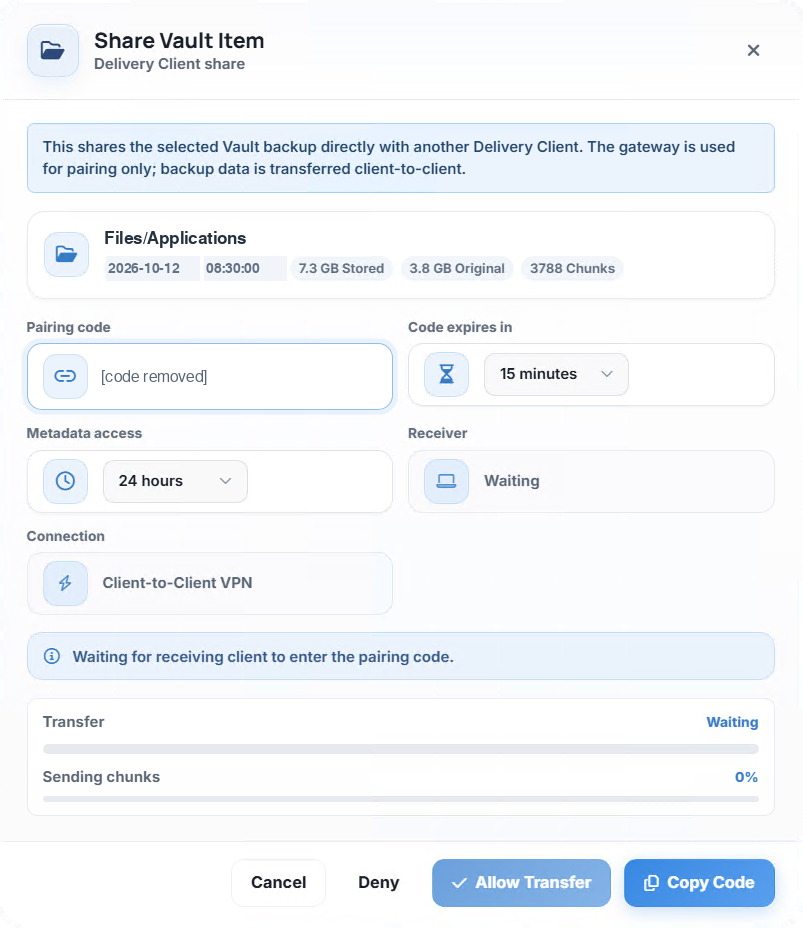
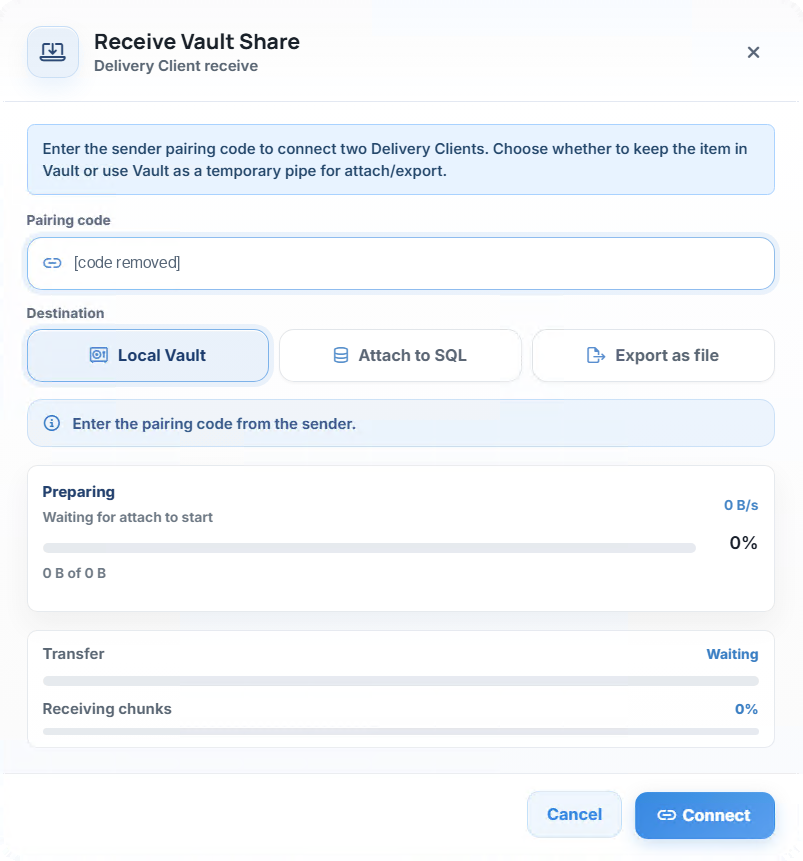
Send a Vault backup to a colleague's Delivery client with a pairing code; it transfers client to client.

Status in the Cloud Dashboard

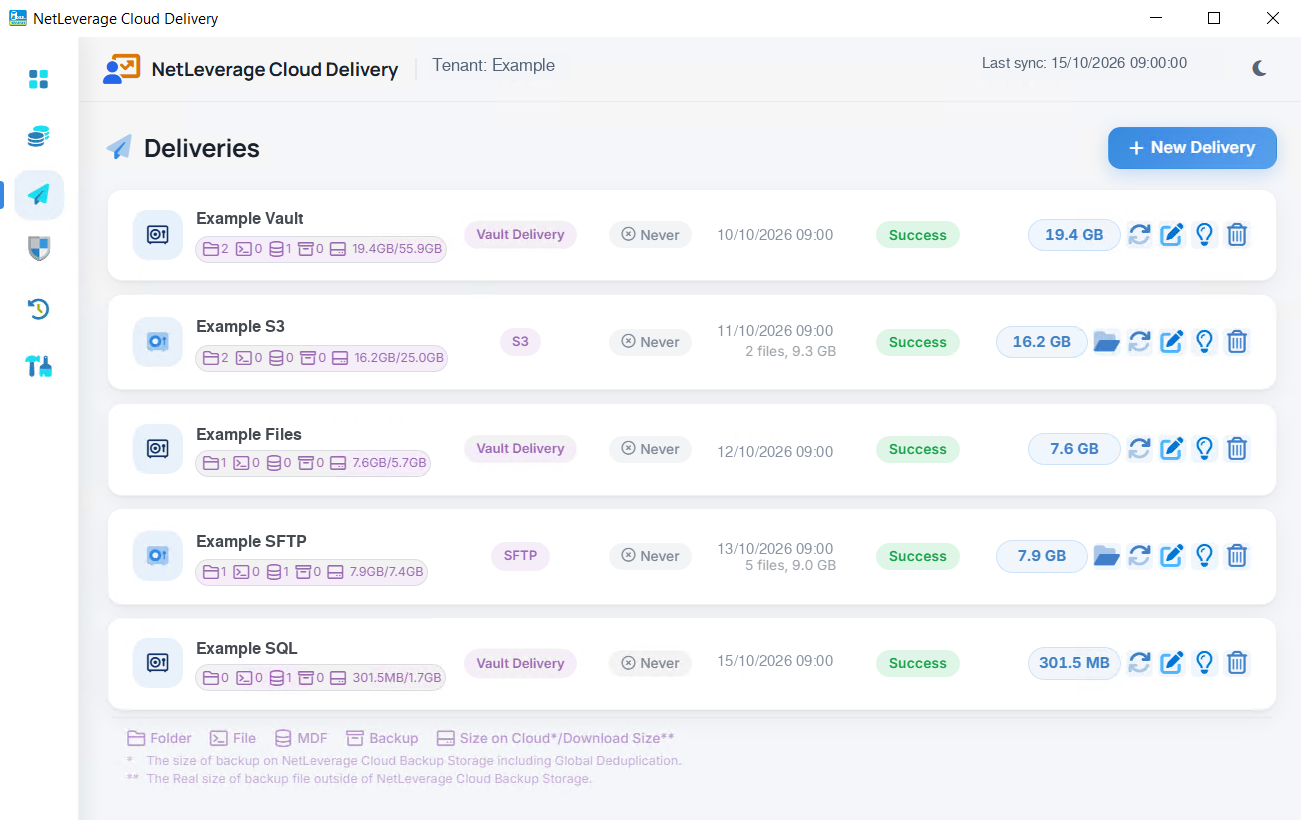
Every delivery shows up as a destination on the server page, with its last run and history.
Read more

Keep your own copies

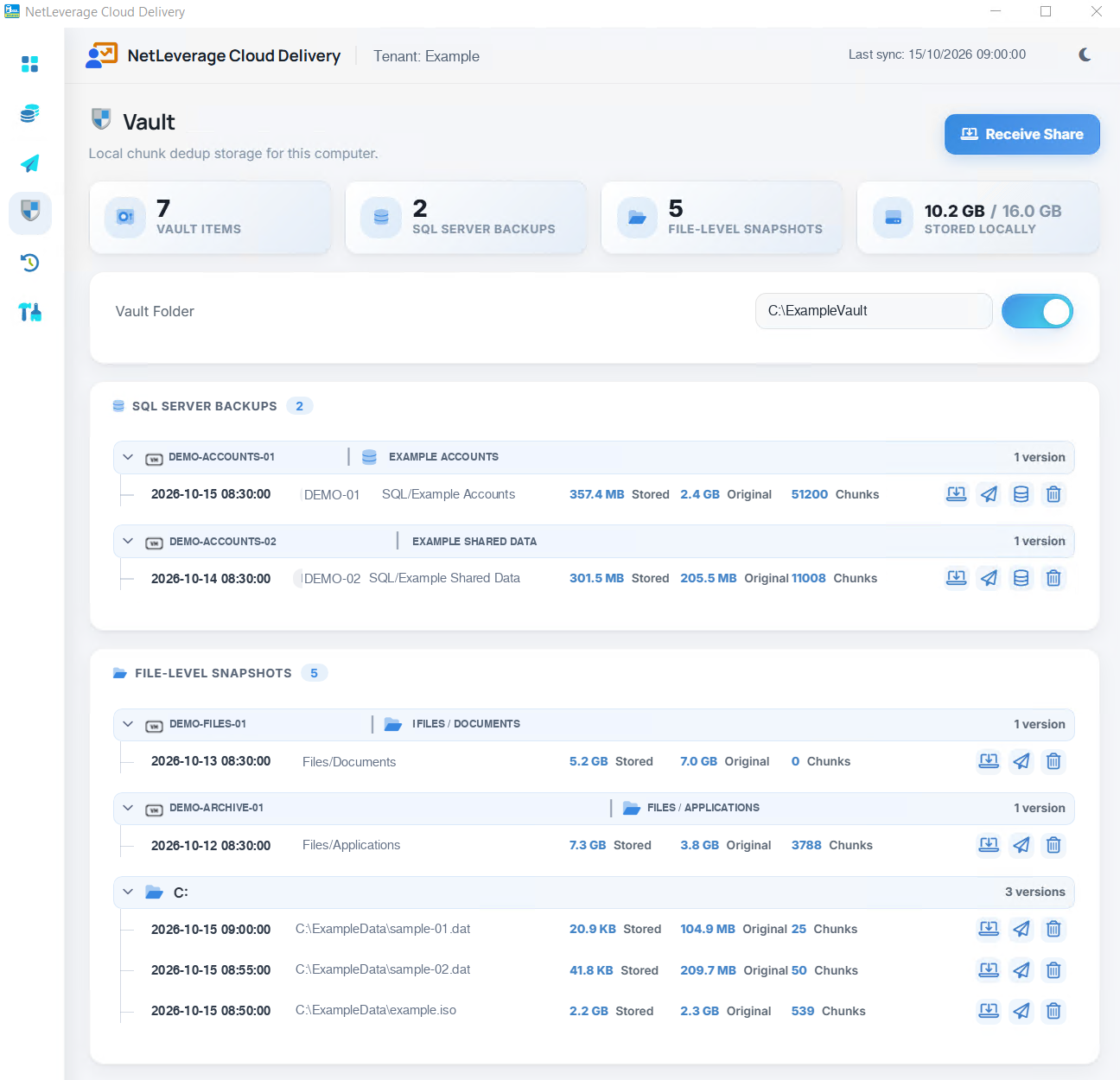
See the copies already stored on your computer, choose an earlier version and decide how to use it. Local copies remain within reach even when the cloud cannot be reached.

Vault page of the Delivery client
The Vault: stored once, listed by server, every version at hand.

Set the delivery routine

Agree what should arrive, where it should go and how often. Set the routine once, then check its results rather than repeating the same transfer by hand.

Your destination. A direct route.

SFTP and S3 deliveries can be configured in either the Cloud Dashboard or the Delivery Client. The backup uploads directly from the cloud to the chosen destination; it does not pass through the customer’s computer. This avoids an unnecessary download followed by a re-upload, saving that use of the customer’s bandwidth and avoiding the extra transfer step. Progress is visible in the Delivery Client too.

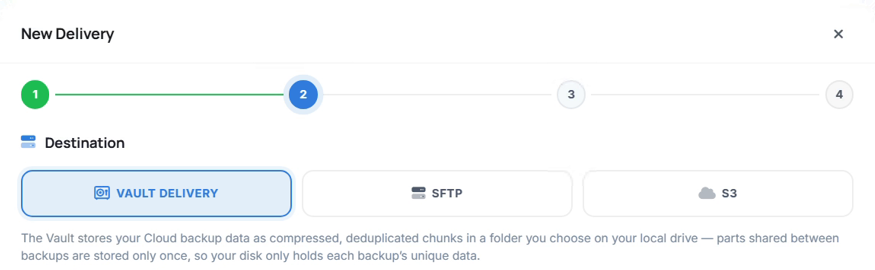
Vault delivery is different: it keeps selected backups in a Vault folder on the customer’s local drive.

Vault delivery

Keep selected backups in a Vault folder on your local drive.
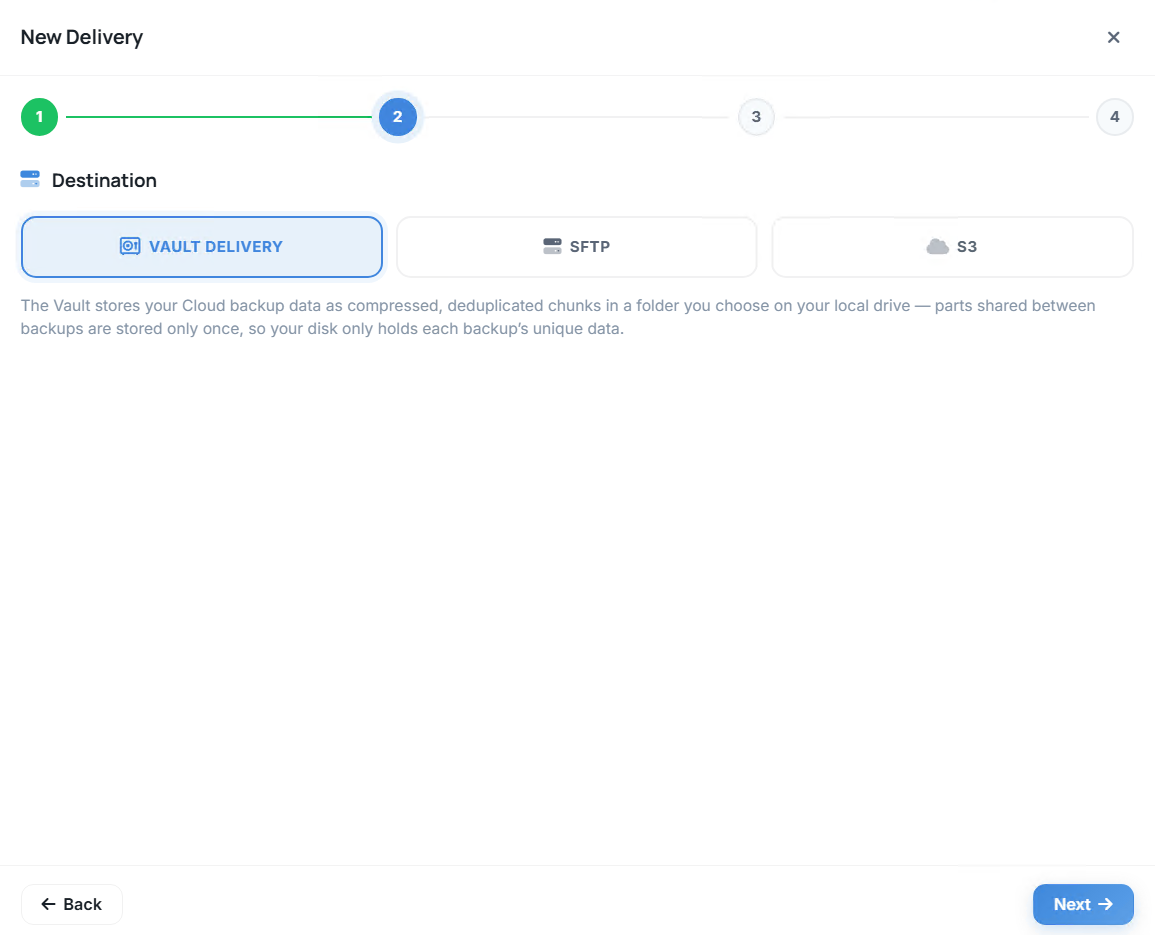
Delivery Client: Vault delivery destination settings with example values
Vault delivery settings in the Delivery Client. Open image for full-size detail.

SFTP delivery

Backups upload directly from the cloud to your SFTP destination.
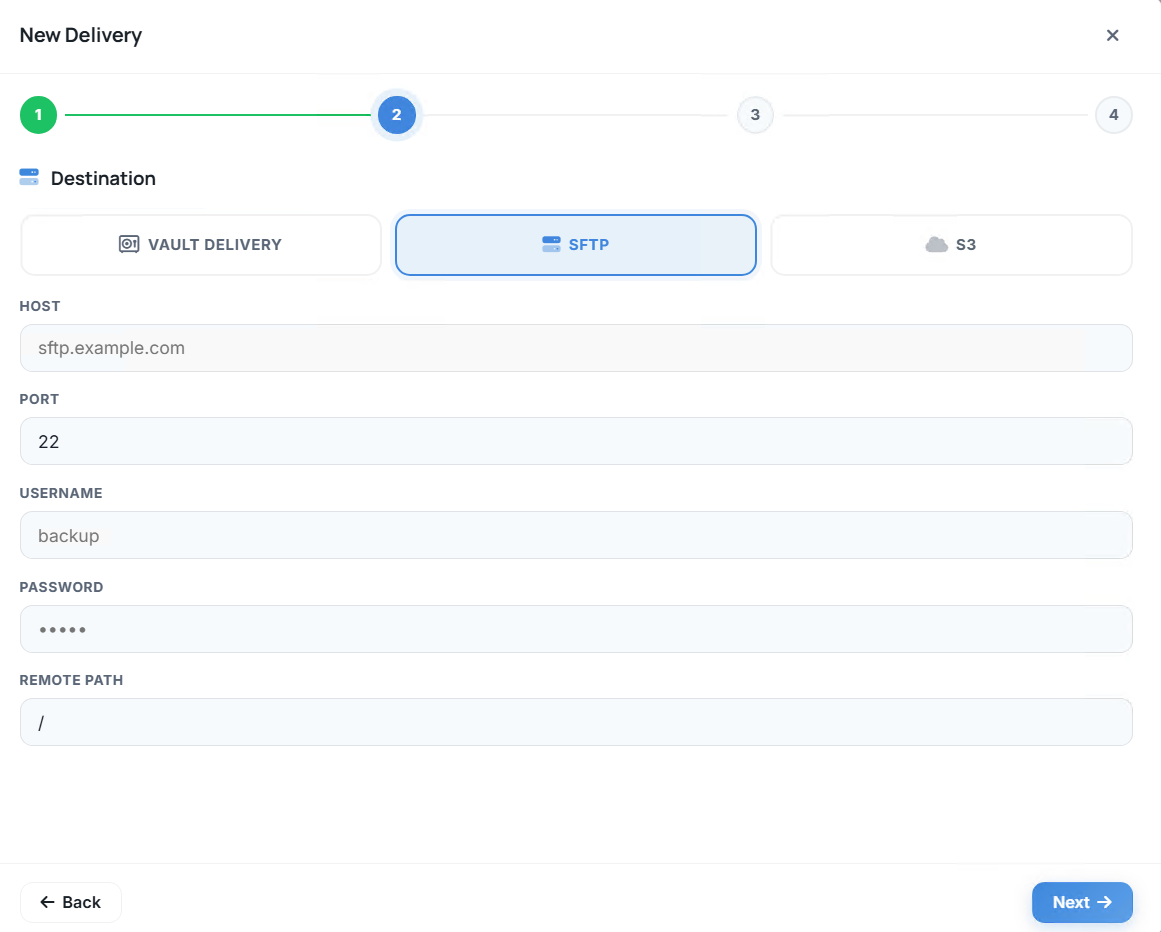
Delivery Client: SFTP delivery destination settings with example values
SFTP delivery settings in the Delivery Client. Open image for full-size detail.

S3 delivery

Backups upload directly from the cloud to your S3 storage.
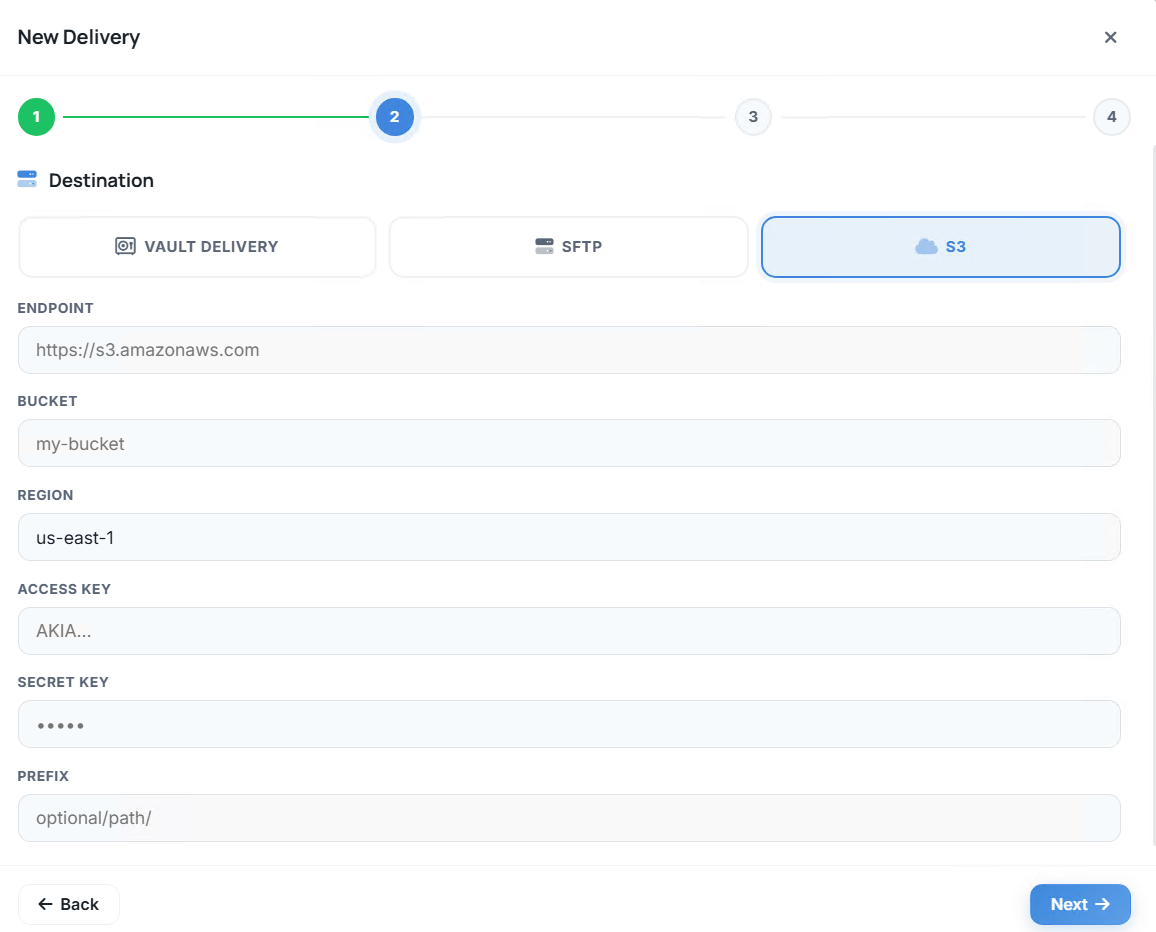
Delivery Client: S3 delivery destination settings with example values
S3 delivery settings in the Delivery Client. Open image for full-size detail.

Share with the right person

Send a selected copy to an authorised colleague, accountant or support person using an expiring code. They choose how to use it on their side, without needing access to the rest of your Vault.

Business team working together around a table

Try it with your data

Explore the service with your own data and the people who will use it. Talk to us about arranging your ten-day trial.